

Jer Carlo Catallo
Posted on March 15, 2026 • 7 min read
Apply Zero Trust on AI Coding Assistants
Protecting secrets with GitHub Copilot and coding assistants requires a Zero Trust approach. Learn how to implement layered controls through local VS Code hardening, account-level Copilot settings, repository guardrails, and safe prompting habits.
Apply Zero Trust on AI Coding Assistants
Let's be clear: GitHub Copilot comes from Microsoft, a highly respected and famously secure company. Between their strict Responsible AI Standard, their intellectual property indemnification, and their massive "Secure Future Initiative" aimed at baking enterprise-grade security into every layer of their ecosystem, Copilot is arguably one of the most reliable and secure AI coding tools on the market today. I trust the GitHub and Microsoft developer ecosystem more than most alternatives right now because they are deeply established and already integrated into the way modern teams ship software.
However, relying on a vendor's strong security posture is not an excuse to abandon your own. Even with Microsoft's robust protections in place, you still need to do your due diligence.
Applying a Zero Trust security model means that even baseline trust is not blind trust. Just because the underlying infrastructure is secure does not mean you should carelessly hand over your raw database credentials or customer data to an AI prompt. Zero Trust requires disciplined usage.
I am deliberately choosing depth over novelty. I want to master GitHub Copilot instead of constantly hopping across different AI coding assistants. I chose Copilot to truly learn its ins and outs. As the industry standard, its seamless integration with VS Code makes for a highly balanced experience. While it may not offer the same "one-shot" generation power as Claude Code, that is precisely the appeal. Copilot leaves the control in the developer's hands. True to its name, it acts as a genuine programming partner at your side. It is a tool you can learn and grow with while staying in the driver's seat.
My real goal is to master secure prompting and AI engineering hygiene:
- writing prompts with minimum necessary context
- redacting sensitive values before sharing any code
- avoiding customer and production data exposure
- validating generated outputs for security and correctness
- enforcing repeatable local and account-level privacy controls
This is where I see the highest return. Better prompts, stronger privacy posture, cleaner review habits, and safer delivery speed.
A lot of developers think they are safe once they disable one or two Copilot features. Under a Zero Trust framework, that is not enough.
If your goal is to reduce data leak risk, you need layered controls. You need guardrails in your local editor, your GitHub Copilot account settings, your repository instructions, and your team process.
One toggle helps. Layers protect.
Why A Single Setting Fails in Practice (The Perimeter Myth)
In traditional security, we used to rely on a single firewall (a perimeter) to keep bad things out. Zero Trust taught us that perimeters fail. The same applies to your IDE. Security posture is built from overlap and redundancy, not from a single switch.
Real incidents usually happen through context expansion, not one obvious mistake.
Examples:
- A prompt includes a redacted function but the surrounding files still contain sensitive constants.
- A developer disables one Copilot feature, but another workflow still sends context through chat.
- Secret-like files are blocked in one language mode, but the same content is pasted into another file type.
The Zero Trust Layered Model You Should Use
Layer 0. The Case for GitHub Copilot Enterprise
Before looking at settings, companies must choose the right foundation. For any professional organization, GitHub Copilot Enterprise is the recommended baseline over Individual plans. While an Individual plan is great for hobbyists, it lacks the administrative "kill switches" and data sovereignty required for corporate compliance.
Key Benefits for Companies:
- Data Protection & Privacy: Unlike individual plans which may have different default data sharing terms, Enterprise ensures your code is not used to train the global model.
- Centralized Governance: Admins can enforce security policies (like blocking public code suggestions) across the entire organization instantly, rather than hoping every developer configures their IDE correctly.
- Audit Logs: Track who is using AI and how, which is vital for security audits and identifying potential data exfiltration.
- Customization: Enterprise allows for fine-tuning models on your own codebase without leaking that knowledge to the public, increasing the relevance of suggestions while maintaining a private silo.
Layer 1. Local VS Code Hardening (Least Privilege)
Zero Trust starts at the endpoint. Your workspace settings should reduce accidental exposure first.
- Disable Copilot in plaintext and other high-risk file types: Preventing Copilot from activating in
.txt,.md, or.envfiles ensures that it doesn't "read" notes, documentation, or environment variables that often contain sensitive architectural secrets or passwords. - Map common secret-like filenames to plaintext: By forcing files like
id_rsaorconfig.jsonto be treated as plaintext (and then disabling Copilot for plaintext), you create a secondary safety net that prevents the AI from scanning known secret-carrying files. - Disable auto-triggering features that can broaden context unexpectedly: Ghost text (inline suggestions) can sometimes pull context from open tabs you didn't intend to share. Disabling "suggest-as-you-type" forces you to manually trigger the AI, ensuring you are conscious of what code is being analyzed.
- Keep browser-to-chat context transfer disabled: This prevents Copilot from scraping your open browser tabs or documentation pages, which might contain internal jira tickets, customer info, or admin dashboards.
- Keep autopilot-style behavior disabled for sensitive work: Features that allow the agent to autonomously jump between files can lead to "context creep," where the AI accesses more of your proprietary codebase than is necessary for the specific task at hand.
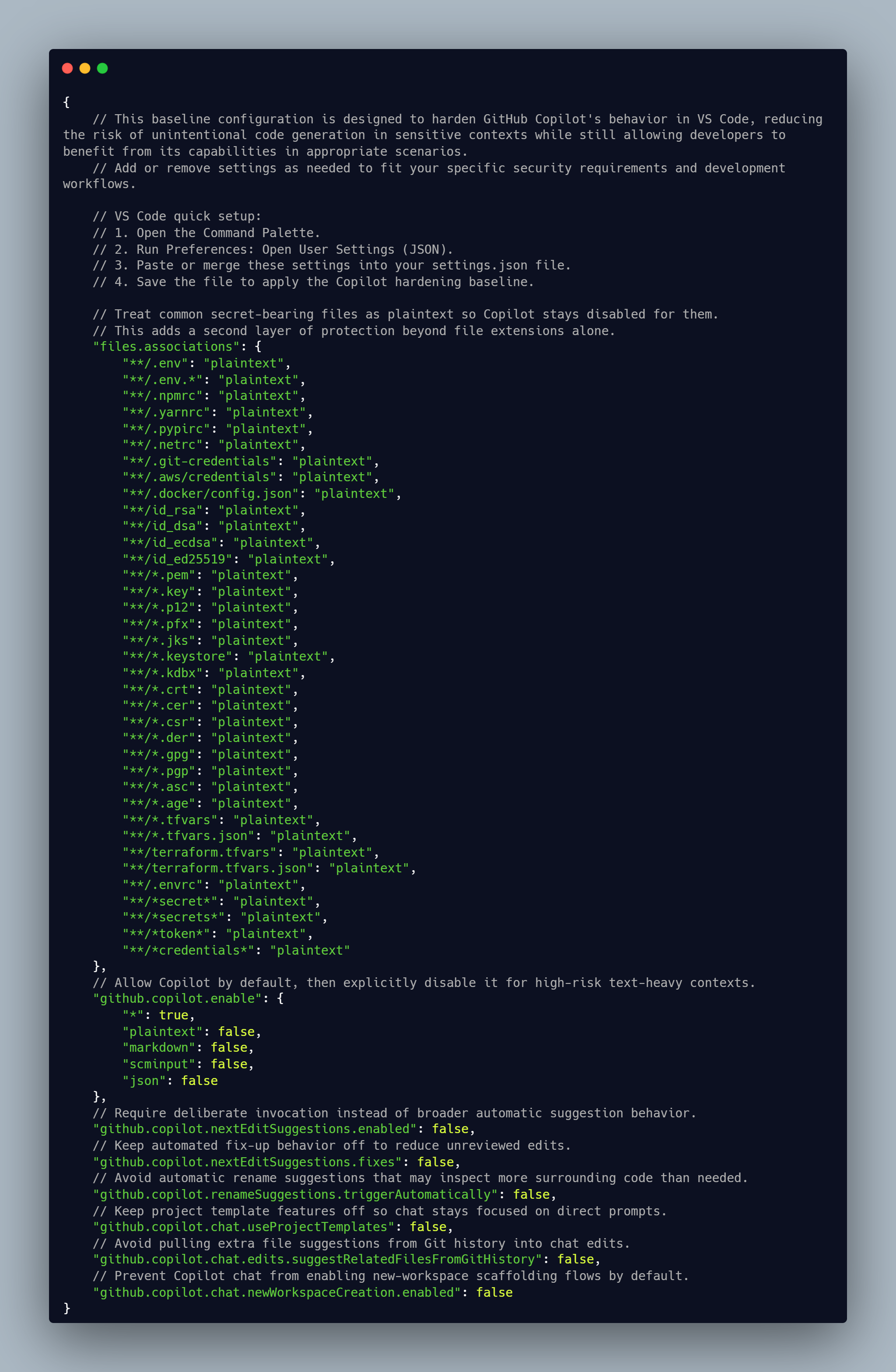
Layer 2. GitHub Copilot Account and Org Settings (Centralized Policy)
Editor settings alone are not enough because account and org policy decide key behavior.
- Disable prompt and suggestion collection where available: This ensures that neither your "input" (the code you write) nor the "output" (the suggestions provided) are stored on vendor servers for model improvement, keeping your IP entirely within your control.
- Block suggestions that match public code: This is a critical legal and security guardrail. It prevents the AI from suggesting verbatim snippets of GPL or other licensed code that could lead to copyright infringement or "poison" your codebase with insecure public patterns.
- Keep web search disabled unless explicitly required: While web search adds "freshness," it can also leak the names of internal libraries or project codenames to search engines. Keep it off to maintain a closed-loop environment.
- Restrict coding-agent repository access to none or selected repositories: Limit the AI's "vision" to only the project you are currently working on. This prevents a leak in one project from providing the AI with enough context to understand your entire company's infrastructure.
- Use organization or enterprise controls for repository or path exclusions: Use
copilot-ignorefiles at the admin level to hard-block specific sensitive directories (like/certsor/logs) so that no developer, regardless of their local settings, can accidentally share them.
Layer 3. Repository Guardrails (Contextual Boundaries)
Repository-level instructions help every contributor follow the same boundaries.
Use a strict instruction file to enforce:
- never share secrets or credentials
- redact customer and production data
- minimize context to only relevant files
- avoid external tools unless explicitly approved
This gives developers a consistent baseline and lowers policy drift.
Layer 4. Prompt Hygiene (Assume Breach)
Even with perfect settings, unsafe prompts can still leak data. You must assume that anything entering the prompt window could be exposed.
Rules that should never change:
- Never paste secrets, tokens, private keys, or certificates.
- Never paste raw production logs with sensitive fields.
- Never paste customer data or regulated records.
- Prefer synthetic or redacted examples.
- Ask for patterns and structure before sharing proprietary implementation details.
Why This Matters for Copilot and Other Coding Assistants
This is not only about one vendor. The same risk pattern applies to most cloud AI assistants.
If your requirement is zero risk of proprietary context leaving your environment, cloud AI assistance is not the right tool for that scope. For everyone else, layered governance is the realistic path.
Practical Team Rollout Checklist
- Harden local workspace settings for all developers.
- Apply account and org Copilot policy controls.
- Add repository-level guardrails and keep them versioned.
- Train the team on banned prompt content categories.
- Require manual review and secret scanning on every PR.
Do this as one program. Not as isolated settings.
Final Thought
Turning off one toggle feels safe. It is not security.
Layered controls, explicit policy, and disciplined prompting are how you keep secrets while still benefiting from AI coding assistants.
Over to You
Now that you have read through all four layers, how many of these gaps did you already have in place? And how many did you realize you were unknowingly skipping every day? Most developers are surprised by how much context their coding assistant can quietly collect before a single setting is ever changed. Lock it down today.
Photo Credits:
Photo by Arnold Francisca on Unsplash
Github Copilot icon by Icons8